Setting up and Configuring your Microsoft SQL Server 2008 Local Database
Download SQL Server
Download SQL Server Express. Express is the Free edition of MS SQL Serverhttp://www.microsoft.com/en-us/download/details.aspx?id=1695
Install your SQL Server Instance
- Click the Start button -> Click Microsoft SQL Server 2008 -> Click Configuration Tools -> Select SQL Server Installation Center
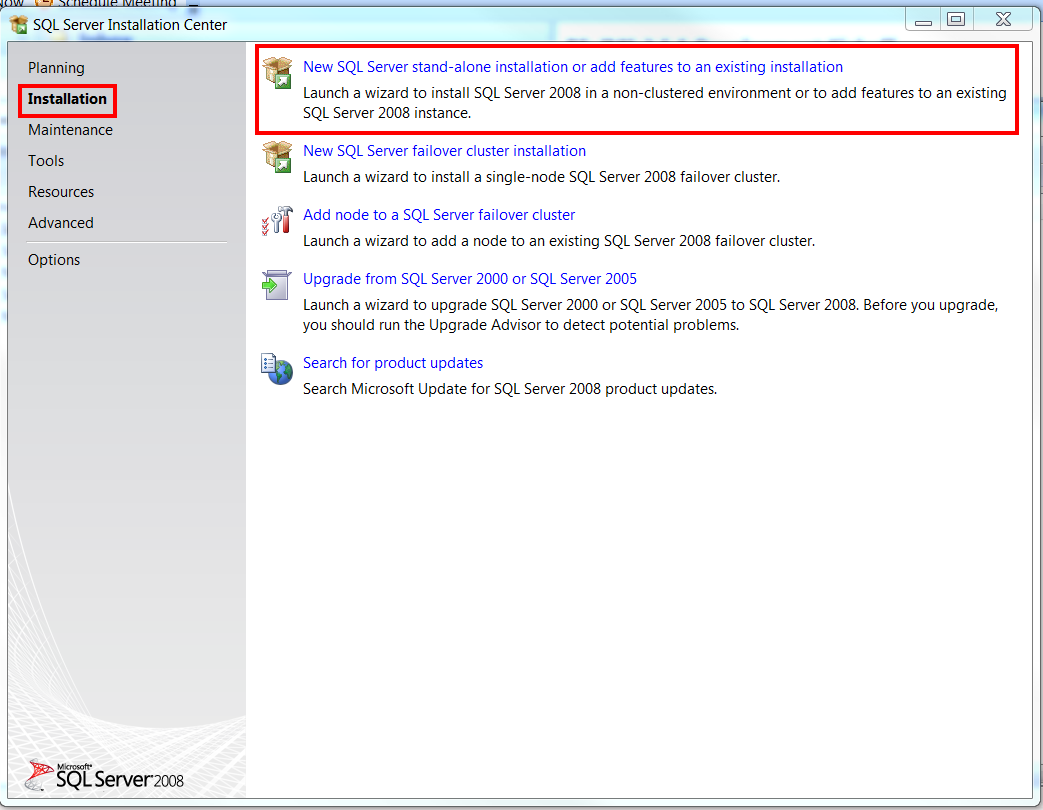
- Select Installation -> Select New SQL Server stand-alone installation
 |
| Select SQL Server stand-alone installation |
Get your Local SQL Server Service Up and Running
Open up the SQL Server Configuration Manager
- Click the Start button -> Click Microsoft SQL Server 2008 -> Click Configuration Tools -> Select SQL Server Configuration Manager
 |
| Setup SQL Server Config Manager |

Start up the SQL Services
You want to ensure the following services are in the "Running" State and then you want to set the following services to automatic Start mode.
- SQL Server: SQLEXPRESS
- SQL Server Browser
 |
| Start up required SQL Server Services |

Setup Authentication to your Local SQL Server
- Click the Start button -> Click Microsoft SQL Server 2008 -> Select SQL Server Management Studio
- Click "Connect to Object Explorer" and select Server Name:
[YOUR_PC_NAME]\SQLEXPRESS
Example:
Your Computer\SQLEXPRESS or (localhost)\SQLEXPRESS
 |
| Setup Authentication for your SQL Server |

Finding your PC Name:
Click the Start Button -> Right-click My Computer -> Properties -> Computer Name tab
 |
| How to find your PC Name on the network |

Configure your User Accounts and Permissions
Create a Login Account:
- Click the Start button -> Click Microsoft SQL Server 2008 -> Select SQL Server Management Studio
- Connect to your Local SQL Server
- Click on the expand tree button for your Local Server -> Security -> Right-click on Logins -> Select New Login
Setup the Password for the New User:
Un-check the following settings:
- Enforce password policy
- Password expiration
- User must change pw(Since this is local)
Set the Default database -> This DB
Grant roles to New User Account: User Configuration Page
- Map to your database -> grant db_owner role Status Page
- Grant Permissions to connect then Enable Login
 |
| Setup Permissions and Roles |

Setup Network and Authentication
- Click the Start button -> Click Microsoft SQL Server 2008 -> Select SQL Server Management Studio
- Connect to your Local SQL Server
- Right-click your Local Server -> Select Properties -> Select Security Tab -> Enable SQL Server and Windows Authentication Mode
Network Configuration
Enable TCP/IP
- Open SQL Server Configuration Manager -> SQL Server Network Configuration -> Protocols for SQLEXPRESS -> Enable TCP/IP
 |
| Enable TCP/IP and set up authentication method |
Restart your SQL Local Server Service
- You will have to restart your SQL Server after enabling TCP/IP
