How to set up a SQL Server 2008 Local Database
Setting up and Configuring your Microsoft SQL Server 2008 Local Database
Download SQL Server
Download SQL Server Express. Express is the Free edition of MS SQL Serverhttp://www.microsoft.com/en-us/download/details.aspx?id=1695
Install your SQL Server Instance
- Click the Start button -> Click Microsoft SQL Server 2008 -> Click Configuration Tools -> Select SQL Server Installation Center
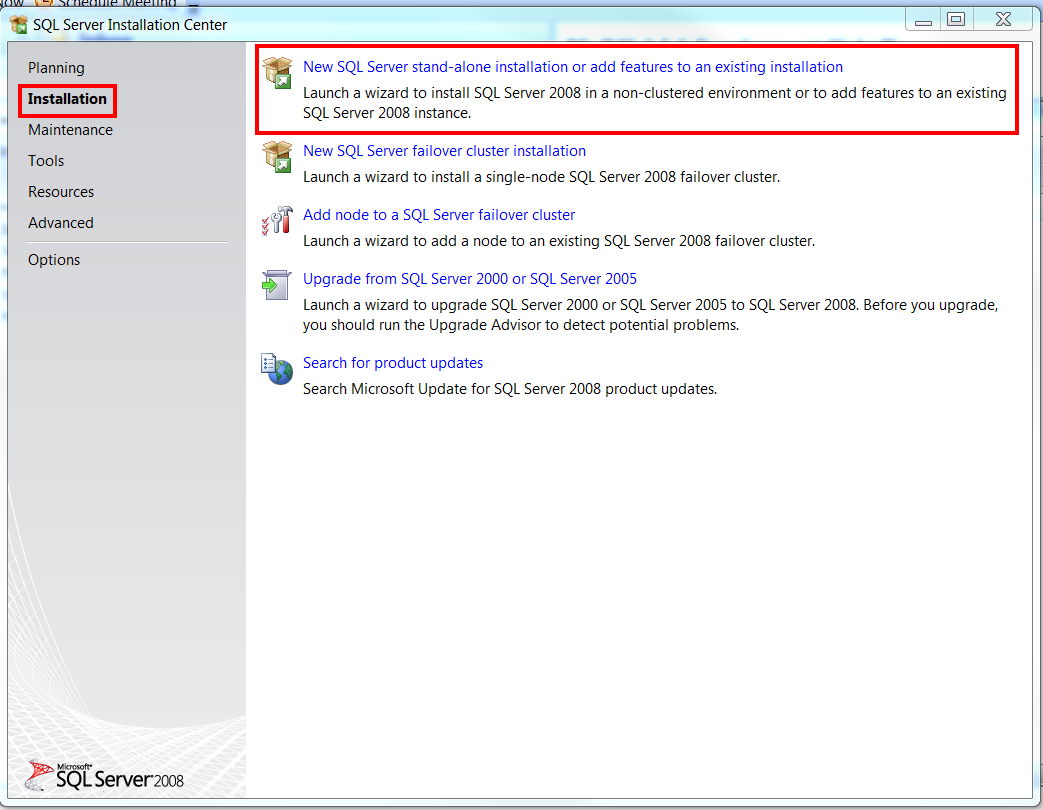
- Select Installation -> Select New SQL Server stand-alone installation
 |
| Select SQL Server stand-alone installation |
Get your Local SQL Server Service Up and Running
Open up the SQL Server Configuration Manager
- Click the Start button -> Click Microsoft SQL Server 2008 -> Click Configuration Tools -> Select SQL Server Configuration Manager
 |
| Setup SQL Server Config Manager |
Start up the SQL Services
You want to ensure the following services are in the "Running" State and then you want to set the following services to automatic Start mode.
- SQL Server: SQLEXPRESS
- SQL Server Browser
 |
| Start up required SQL Server Services |
Setup Authentication to your Local SQL Server
- Click the Start button -> Click Microsoft SQL Server 2008 -> Select SQL Server Management Studio
- Click "Connect to Object Explorer" and select Server Name:
[YOUR_PC_NAME]\SQLEXPRESS
Example:
Your Computer\SQLEXPRESS or (localhost)\SQLEXPRESS
 |
| Setup Authentication for your SQL Server |
Finding your PC Name:
Click the Start Button -> Right-click My Computer -> Properties -> Computer Name tab
 |
| How to find your PC Name on the network |
Configure your User Accounts and Permissions
Create a Login Account:
- Click the Start button -> Click Microsoft SQL Server 2008 -> Select SQL Server Management Studio
- Connect to your Local SQL Server
- Click on the expand tree button for your Local Server -> Security -> Right-click on Logins -> Select New Login
Setup the Password for the New User:
Un-check the following settings:
- Enforce password policy
- Password expiration
- User must change pw(Since this is local)
Set the Default database -> This DB
Grant roles to New User Account: User Configuration Page
- Map to your database -> grant db_owner role Status Page
- Grant Permissions to connect then Enable Login
 |
| Setup Permissions and Roles |
Setup Network and Authentication
- Click the Start button -> Click Microsoft SQL Server 2008 -> Select SQL Server Management Studio
- Connect to your Local SQL Server
- Right-click your Local Server -> Select Properties -> Select Security Tab -> Enable SQL Server and Windows Authentication Mode
Network Configuration
Enable TCP/IP
- Open SQL Server Configuration Manager -> SQL Server Network Configuration -> Protocols for SQLEXPRESS -> Enable TCP/IP
 |
| Enable TCP/IP and set up authentication method |
Restart your SQL Local Server Service
- You will have to restart your SQL Server after enabling TCP/IP